
Custom Lanyard Design Guide Singapore — Artwork Specs, File Formats & Printing Tips
The most common reason a lanyard customisation Singapore order runs late is not the production line — it is the artwork. Files that arrive in the wrong format, at insufficient resolution, or with colours specified in RGB instead of CMYK add days of back-and-forth between buyer and supplier before a single metre of fabric enters the press. This guide eliminates that delay by giving you everything you need to deliver press-ready artwork from day one.
Whether you are preparing artwork for a simple screen-printed tubular lanyard or a full-bleed sublimation design for a national event, the same fundamental rules apply. Read this before briefing any supplier — including us. If you are simultaneously planning your order budget, our custom lanyard pricing and MOQ breakdown runs alongside this guide.
Order from Aquaholic Gifts
Order custom printed lanyards
Polyester, heat-transfer and full-colour printed lanyards made in Singapore. Custom production 21–45 days.


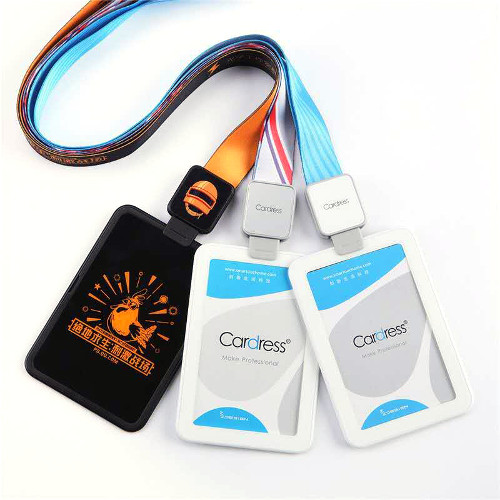
For bulk and corporate orders. Minimum order quantity and the full price list are on the lanyard range page.
Understanding Lanyard Dimensions Before You Design
Designing for lanyards requires you to work within a long, narrow canvas — typically 15mm to 25mm wide and 900mm long (the full-wrap length before folding). The physical constraints directly affect what design elements are legible and what gets lost at scale.
Standard Lanyard Canvas Sizes
| Width | Common Use | Design Notes |
|---|---|---|
| 15mm | Budget events, promotional | Logo only; no text smaller than 8pt |
| 20mm | Corporate standard | Logo + short URL or tagline viable |
| 25mm | Premium / VIP / Healthcare | Logo + tagline + URL; most design freedom |
The usable print width is slightly less than the fabric width — typically 2mm safety margin on each side. For a 20mm lanyard, your design canvas is effectively 16mm wide. Elements that extend beyond the usable area will be lost in the edge fold or seam. Always set your artwork to the exact canvas size your supplier specifies.
Artwork File Specifications for Lanyard Printing in Singapore
Accepted File Formats
- AI (Adobe Illustrator) — preferred for vector-based logos and silkscreen designs
- PDF (print-ready, vector or high-res embedded) — accepted for both screen print and sublimation
- EPS — vector format, compatible with most pre-press workflows
- PSD (Adobe Photoshop) — accepted for sublimation designs; must be at 300 DPI at print size
- PNG / TIFF — accepted for sublimation if minimum 300 DPI at full print dimensions; not for screen printing
Not accepted: JPEG for screen printing (lossy compression creates artefacts at edges), Word documents, PowerPoint slides, or low-resolution PNG files pulled from websites.
Resolution Requirements
For raster (pixel-based) artwork used in sublimation printing: minimum 300 DPI at the actual print dimensions. The most common mistake is supplying a file at 72 DPI from a website, then scaling it up in the design template — this does not add resolution; it just makes a blurry image larger.
For vector artwork (AI, PDF, EPS): resolution is not a concern — vectors are mathematically scalable with no quality loss. If your logo exists as a vector file, always use it.
Colour Mode — CMYK vs RGB
⚠️ Critical: Convert RGB to CMYK Before Submitting
Screens (monitors, phones, design software) display colours in RGB. Printers — including sublimation presses — output in CMYK. An RGB file that has not been converted will be auto-converted by the RIP software at production, often with significant colour shift. Your brand’s exact blue may print as a noticeably different shade. Convert to CMYK yourself in Illustrator or Photoshop, compare the preview, and adjust before sending.
Design Rules by Printing Method
Screen Printing Design Rules
Screen printing lays ink through a mesh stencil — one pass per colour. This means:
- Designs must be flat, solid fills — no gradients, no drop shadows, no feathered edges
- Each colour = one screen = one additional setup cost; keep to 1–3 colours
- Minimum line weight: 0.5pt; thinner lines will not hold on fabric weave
- Minimum font size: 8pt in a clean sans-serif; decorative or thin-stroked typefaces at small sizes will lose detail
- Specify colours as Pantone (PMS) references if exact brand colour matching is required
Dye Sublimation Design Rules
Sublimation is the most design-flexible print method — it handles unlimited colours, full photographic images, and complex gradients. However, it has its own constraints:
- Only works on light-coloured polyester fabric; dark base fabrics absorb the sublimation dye inconsistently
- Pure black in CMYK (C:0, M:0, Y:0, K:100) prints cleanest; avoid 4-colour rich black (C:60, M:40, Y:40, K:100) on thin fabric
- White elements in the design = white fabric showing through — sublimation cannot print white ink
- Artwork must be prepared at 300 DPI at actual print size
- Colour profiles: use ISOcoated_v2_eci.icc or supply a PDF/X-1a for consistent colour
Woven / Jacquard Design Rules
Woven lanyards are programmed into a Jacquard loom — the design must be converted from a print artwork into a thread-by-thread weaving pattern. This imposes the strictest design constraints:
- Maximum 4–8 colours — each colour is a different thread; more colours = exponentially longer setup time
- No gradients — colour must be solid and distinct; all tonal blending is simulated by thread proximity
- Simple, bold logos work best; highly detailed illustrations lose definition in the weave resolution
- Minimum font size: 12pt in a bold sans-serif; serif fonts at small sizes typically lose letter detail
- Submit a clean vector AI or EPS file — the supplier’s weaving team will convert it to a loom programme
Typography Rules for Lanyard Text
On a narrow fabric ribbon, typography is the element most likely to fail. Follow these rules to ensure your text is legible on the finished product:
- Minimum 8pt for screen print; 7pt for sublimation — anything smaller is not legible on a 20mm ribbon
- Outline all fonts before submitting AI or EPS files — this converts text to paths so your font does not need to be installed on the supplier’s system
- Use bold or medium weight variants of your brand font; thin/light font variants lose hairlines in production
- Sans-serif fonts (Helvetica, Arial, Gotham, Montserrat) reproduce more reliably than decorative or serif faces at small sizes
- Avoid ALL CAPS in long strings — all-caps text at small sizes on a narrow canvas is difficult to read at a glance
Common Lanyard Design Mistakes and How to Avoid Them
- Placing critical elements too close to the edge. Maintain a 2mm safety margin on each long edge. Anything outside this zone risks being cut off or hidden in the fold.
- Using your website PNG logo file. Website logos are typically 72 DPI and saved as RGB. Retrieve your original vector AI or EPS logo from your brand guidelines or your designer.
- Forgetting to check the repeat pattern direction. On a full-wrap lanyard, the same design repeats along the length. Make sure the pattern direction reads correctly when the lanyard is worn — text should not be upside-down on one half of the loop.
- Using screen colours to evaluate sublimation output. Your monitor displays RGB; the press outputs CMYK. Convert to CMYK and do a soft-proof before approving the digital mock-up.
- Not specifying the background colour. “White background” and “no background (transparent)” are very different instructions for a sublimation press. Confirm explicitly what the lanyard base colour is and whether the background is the fabric colour or a printed colour.
The Proofing Process — What to Check Before Approving
Once your artwork is submitted, your supplier produces a scaled digital proof. Before clicking “approve”, run through this checklist:
- ☐ Logo is positioned correctly and not truncated at any edge
- ☐ Text is legible — zoom in on the proof at 1:1 scale before approving
- ☐ Colours match your brand reference (allow for slight screen-to-print variance)
- ☐ Design direction is correct (text reads right-way up when lanyard is worn)
- ☐ Card holder attachment point does not obscure critical design elements
- ☐ Safety break-away clip position is confirmed (if required)
- ☐ Spelling of all text is correct — suppliers are not responsible for errors approved by the client
For sector-specific lanyard specifications for healthcare and hospitality, there are additional proofing considerations — colour-coding by department, RFID cut-out positioning in card holders, and break-away clip placement — that are worth confirming in the proof stage.
Design Brief Checklist — What to Send Your Supplier
Artwork Brief Checklist
- ☐ Lanyard width and length confirmed (e.g. 20mm × 900mm full-wrap)
- ☐ Artwork file: vector AI/EPS or 300 DPI raster at print dimensions
- ☐ Fonts outlined (vector files) or embedded (PDFs)
- ☐ Colour mode: CMYK (or Pantone references for screen print)
- ☐ Background colour / fabric colour specified
- ☐ 2mm safety margins respected on both long edges
- ☐ Print method confirmed (screen print / sublimation / woven)
- ☐ Hardware requirements: hook type, card holder, break-away clip, other
- ☐ Quantity and required delivery date stated
Frequently Asked Questions — Lanyard Design & Artwork
Can Aquaholic Gifts help create my lanyard design?
Yes. If you do not have an in-house designer or an existing brand file, our team can produce a design layout based on your logo, brand colours, and brief at no additional charge. Please share your logo files (ideally in vector format), brand colour references, and any text you want included.
I only have a JPEG of my logo. Can I still order?
For sublimation printing, a high-resolution JPEG (minimum 300 DPI at print size) is usable. For screen printing, a vector file is strongly preferred. If your JPEG is low resolution, our team can attempt a vector trace — share what you have and we will advise.
How many revision rounds do I get on the proof?
Standard orders include two rounds of digital proof revision. Subsequent revisions may incur a small design charge. The best way to minimise revisions is to submit a complete, detailed brief (using the checklist above) with your first artwork submission.
Ready to Submit Your Lanyard Artwork?
Use the brief checklist above, then explore our lanyard printing options and submit your brief — we will confirm your artwork is press-ready before production starts.
